
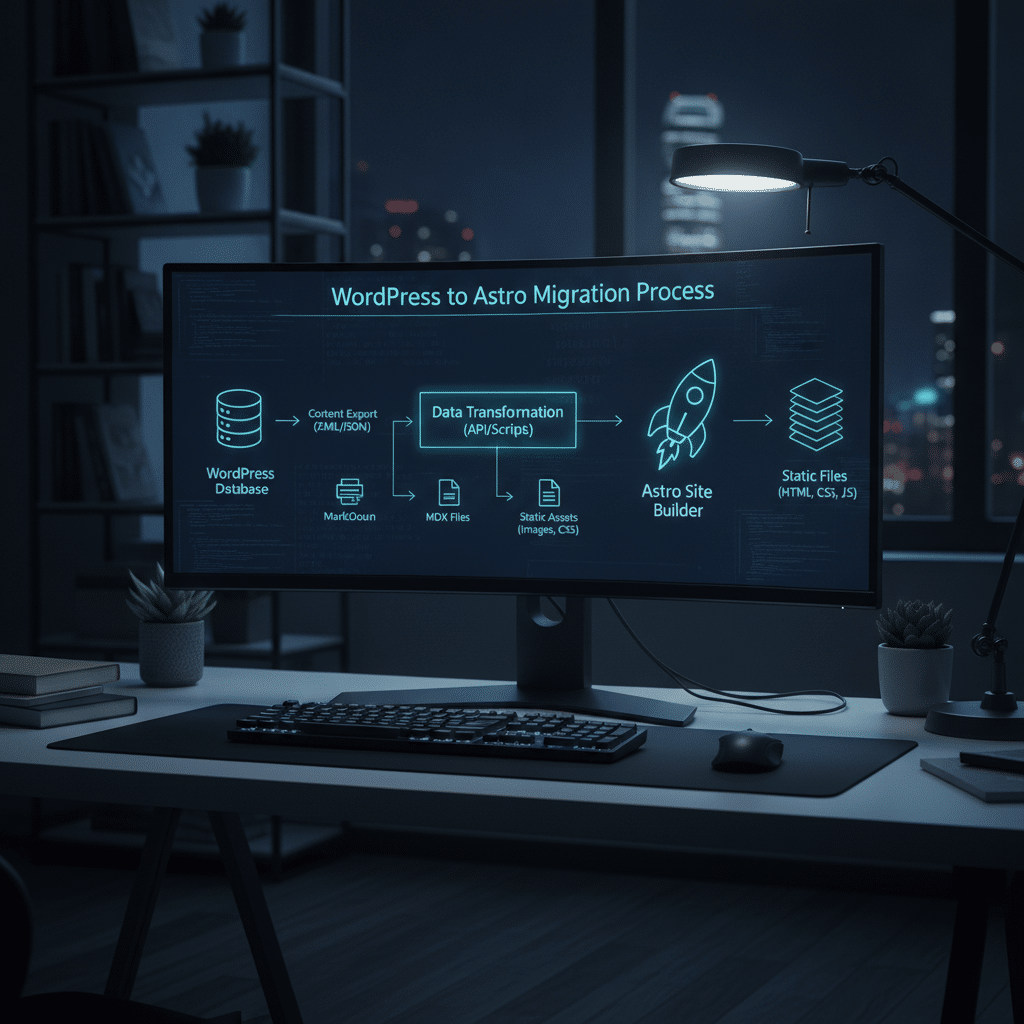
WordPress to Astro Migration: Complete Guide and Lessons
Migrating from WordPress to Astro requires careful planning and execution. This comprehensive guide walks through the complete process, from initial setup to deployment, based on real-world experience moving a content-heavy site to a modern static site generator.
Why Migrate from WordPress to Astro
WordPress powers millions of websites, but it comes with inherent performance limitations. The platform generates pages dynamically on each request, which increases server load and slows response times. Additionally, WordPress requires constant maintenance for security updates, plugin compatibility, and database optimization.
Astro offers a compelling alternative for content-focused websites. The framework generates static HTML files at build time, eliminating server-side processing for each visitor. This approach delivers faster page loads, reduced hosting costs, and improved security since there’s no database to compromise.
The performance difference becomes immediately noticeable. Static sites typically load in under one second, while WordPress sites often take three to five seconds or longer. Therefore, switching to Astro can significantly enhance user experience and search engine rankings.
Pre-Migration Planning and Content Audit
Before beginning the technical migration, assess your current WordPress installation thoroughly. Export all posts, pages, and media files through the WordPress admin panel. Document custom functionality, shortcodes, and plugins that need recreation in the new environment.
Review your content structure and taxonomy. WordPress categories and tags should map to a logical organization system in Astro. Additionally, identify any dynamic features that require special handling, such as contact forms, search functionality, or user comments.
Create a comprehensive URL mapping spreadsheet. This document ensures all existing URLs redirect properly to their new locations, preserving SEO value and preventing broken links. However, many sites benefit from cleaning up their URL structure during migration.
Setting Up the Astro Development Environment
Install Node.js version 18 or higher on your development machine. Astro requires a modern JavaScript runtime environment to function properly. Use the official Astro CLI to create a new project with the command ‘npm create astro@latest’.
Choose a starter template that matches your needs. The blog template provides a solid foundation for content-heavy sites, including pre-configured layouts and markdown support. Nevertheless, starting with a minimal template gives you more control over the final architecture.
Configure the project structure thoughtfully. Create directories for layouts, components, content collections, and public assets. This organization makes the codebase maintainable as it grows over time.
Converting WordPress Content to Markdown
Export your WordPress content as XML using the built-in export tool. Several conversion tools transform WordPress XML into markdown files suitable for Astro. The wordpress-export-to-markdown npm package handles this conversion automatically with reasonable accuracy.
Review the converted markdown files manually. Automated conversion often introduces formatting issues, broken image links, or malformed HTML remnants. Therefore, allocate sufficient time for content cleanup, especially for sites with hundreds of posts.
Preserve frontmatter metadata carefully. Each markdown file needs YAML frontmatter containing the title, date, excerpt, and other relevant information. This metadata powers Astro’s content collections and enables powerful querying capabilities.
Migrating Media Files and Optimizing Images
Download all media files from your WordPress uploads directory. Organize these assets logically within your Astro project’s public folder. Additionally, consider implementing a content delivery network (CDN) for improved performance.
Optimize images before importing them into the new site. Convert large images to modern formats like WebP or AVIF for better compression. Astro’s built-in image optimization component automatically generates responsive image variants at build time.
Update image paths throughout your markdown content. Replace WordPress media URLs with relative paths pointing to your local assets. This step ensures images load correctly in the new environment.
Recreating WordPress Functionality in Astro
Most WordPress plugins have static site equivalents or alternative solutions. Contact forms can use services like Formspree or Netlify Forms instead of database-dependent WordPress plugins. Search functionality works well with client-side solutions like Pagefind or Algolia.
Build custom components for unique WordPress features. Astro components use a straightforward syntax combining HTML, CSS, and JavaScript. However, complex interactive features may require framework components using React, Vue, or Svelte islands.
Implement RSS feeds manually if your WordPress site relied on them. Astro doesn’t generate RSS automatically, but creating a feed template takes minimal effort. This maintains compatibility for subscribers who follow your content through feed readers.
Configuring Redirects and Preserving SEO Value
Set up 301 redirects for any URLs that changed during migration. Most static hosting providers support redirect configuration through special files or configuration options. Netlify uses a _redirects file, while Vercel requires vercel.json configuration.
Maintain your existing URL structure when possible. Changing URLs without proper redirects damages search engine rankings and creates poor user experiences. Therefore, matching WordPress permalinks exactly in Astro saves considerable SEO value.
Submit an updated sitemap to search engines after deployment. Generate a sitemap programmatically in Astro or use the official sitemap integration. This helps search engines discover and index your new static pages quickly.
Performance Optimization and Build Configuration
Configure Astro’s build settings for optimal performance. Enable static site generation for all pages, minimize JavaScript bundle sizes, and implement code splitting where appropriate. These optimizations ensure your site loads as quickly as possible.
Implement caching headers through your hosting provider. Static assets should have long cache durations since they never change once deployed. However, HTML pages benefit from shorter cache times to ensure users receive content updates promptly.
Monitor build times carefully as your site grows. Large sites with thousands of pages may experience slow builds. Consider incremental builds or content pagination strategies if build times exceed reasonable limits.
Testing Before Going Live
Test the migrated site thoroughly before switching DNS records. Check every page type, verify all links work correctly, and confirm forms submit properly. Additionally, test the site across different browsers and devices to catch compatibility issues.
Run performance audits using tools like Lighthouse or PageSpeed Insights. Your new Astro site should score significantly higher than the WordPress version. Look for scores above 90 in all categories, particularly performance and accessibility.
Validate your analytics implementation before launch. Ensure tracking codes fire correctly and events register properly. Losing analytics data during migration creates gaps in your historical records and business insights.
Deployment and Post-Migration Monitoring
Deploy your Astro site to a modern static hosting platform. Services like Netlify, Vercel, or Cloudflare Pages offer excellent performance, automatic HTTPS, and generous free tiers. These platforms integrate seamlessly with Git repositories for continuous deployment.
Update DNS records to point to your new hosting provider. Use a low TTL value before migration to enable quick rollback if issues arise. However, remember that DNS propagation takes time, so plan your migration during low-traffic periods.
Monitor error logs and analytics closely for the first week after migration. Watch for 404 errors, which indicate missing redirects or broken internal links. Address these issues quickly to maintain user experience and search engine trust.
Key Lessons and Long-term Maintenance
Static site generators require different workflows than WordPress. Content updates happen through Git commits rather than a CMS interface. Therefore, consider implementing a headless CMS like Sanity or Contentful if non-technical team members need editing capabilities.
Build times increase as content volume grows. Plan your content architecture carefully, using pagination and dynamic routing strategically. Additionally, some hosting providers offer incremental builds to speed up deployment of small content changes.
The performance and security benefits justify the migration effort. Sites running on Astro typically load three to five times faster than their WordPress equivalents. Moreover, eliminating PHP and databases removes entire categories of security vulnerabilities from your infrastructure.
Original Source: www.mikeroberto.com
Sources
- From WordPress to Astro: Zero Maintenance, Maximum Control — www.mikeroberto.com