
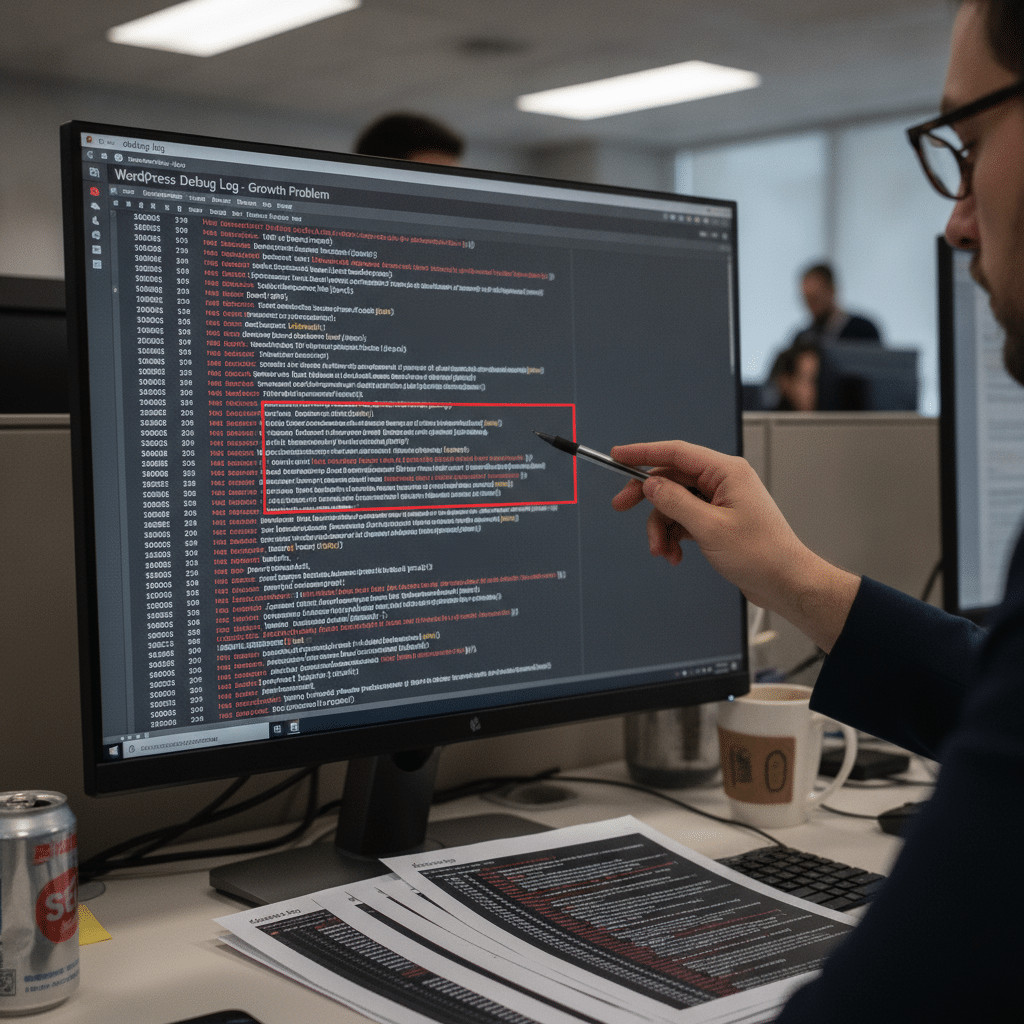
WordPress Debug Log Too Large: Fixes and Prevention
WordPress debug logs can grow to problematic sizes when left unchecked. This common issue affects site performance and consumes valuable server resources. Understanding how to manage these logs properly helps maintain a healthy WordPress installation.
The WordPress debug log stores error messages, warnings, and notices generated by your site. However, when debug mode remains enabled in production environments, the log file can balloon to several gigabytes. This creates multiple problems for website owners and administrators.
Why WordPress Debug Logs Become Too Large
Debug logging in WordPress activates through the wp-config.php file. When developers enable this feature during troubleshooting, they sometimes forget to disable it afterward. Additionally, poorly coded plugins and themes generate excessive error messages that accumulate rapidly.
Each error entry includes timestamps, file paths, and detailed messages. Multiply this by thousands of daily errors, and the log file grows exponentially. Therefore, a single day of production-level traffic can create multi-megabyte log files on busy websites.
Some hosting providers automatically disable sites when debug logs exceed certain size thresholds. This protective measure prevents server resource exhaustion but can catch site owners off guard. Consequently, websites may experience unexpected downtime without warning.
Immediate Solutions for Oversized Debug Logs
The fastest solution involves deleting the existing debug.log file. Located in the wp-content directory, this file can be removed safely without affecting site functionality. However, this only addresses the symptom rather than the underlying cause.
Next, disable debug mode in your wp-config.php file. Change the WP_DEBUG constant to false to stop new entries from being logged. This prevents the file from growing further while you investigate the root issues.
Access your site via FTP or your hosting control panel’s file manager. Navigate to wp-content and locate debug.log. Delete this file immediately if it exceeds 100MB. Most servers handle this deletion without issue.
Checking Your Debug Settings
Open your wp-config.php file and review the debug-related constants. The file should contain settings for WP_DEBUG, WP_DEBUG_LOG, and WP_DEBUG_DISPLAY. Production sites should have WP_DEBUG set to false unless actively troubleshooting.
For staging environments, you can enable logging while suppressing screen output. Set WP_DEBUG to true, WP_DEBUG_LOG to true, and WP_DEBUG_DISPLAY to false. This configuration captures errors without displaying them to visitors.
Preventing Future Debug Log Problems
Implement log rotation to automatically manage file sizes. WordPress itself doesn’t include built-in log rotation, but several plugins provide this functionality. These tools archive old logs and create fresh files at specified intervals.
Additionally, consider using system-level log rotation through logrotate on Linux servers. This approach works independently of WordPress and provides more robust management. Your hosting provider may offer this feature through their control panel.
Monitor your debug log size regularly through automated alerts. Set up notifications when the file exceeds reasonable thresholds. Many server monitoring tools include file size checks as part of their standard feature set.
Identifying the Source of Errors
Before disabling debug mode, examine what’s generating the errors. Open the debug log and look for patterns in the messages. Repeated errors from specific plugins or themes indicate which components need attention.
Update all plugins and themes to their latest versions. Outdated code frequently generates deprecated function warnings and notices. Plugin developers typically fix these issues in newer releases, reducing unnecessary log entries.
If a particular plugin generates excessive errors, contact the developer or consider alternatives. Some plugins simply have poor code quality that generates constant warnings. Therefore, replacing them improves both performance and log management.
Best Practices for WordPress Logging
Enable debug mode only when actively troubleshooting issues. Production websites should run with debugging disabled to prevent both performance impacts and log growth. This simple practice eliminates most debug log problems.
Use conditional debugging that activates only for specific users or IP addresses. This technique allows developers to troubleshoot live sites without exposing errors to regular visitors. Several code snippets and plugins enable this selective debugging approach.
Furthermore, consider external logging services for serious development work. These platforms provide sophisticated filtering, search capabilities, and automatic retention policies. They remove the burden of managing log files from your WordPress installation.
Configuring Debug Constants Properly
The wp-config.php file supports several debug-related constants beyond the basic WP_DEBUG setting. WP_DEBUG_LOG controls whether errors are saved to a file. WP_DEBUG_DISPLAY determines if errors appear on screen.
For production sites, use this configuration: WP_DEBUG set to false, which automatically disables logging and display. During development, set WP_DEBUG to true, WP_DEBUG_LOG to true, and WP_DEBUG_DISPLAY to false. This captures errors privately without alerting visitors.
The SCRIPT_DEBUG constant forces WordPress to use unminified versions of core CSS and JavaScript files. Enable this only during development when debugging front-end issues. It has no effect on error logging but impacts performance.
Server-Level Considerations
Large debug logs can cause server-level problems beyond disk space consumption. File system operations slow down when accessing multi-gigabyte files. This affects backups, file transfers, and general server responsiveness.
Some hosting providers implement automatic restrictions when files exceed certain sizes. Shared hosting environments particularly enforce strict limits to protect all accounts on the server. These restrictions may block file access or trigger account suspensions.
Check your hosting account’s disk usage regularly through the control panel. Debug logs hidden in the wp-content directory often go unnoticed until space runs out. Set up disk usage alerts if your hosting provider offers this feature.
Impact on Backups and Migrations
Oversized debug logs significantly increase backup file sizes. Backup plugins include the wp-content directory by default, which contains the debug log. This unnecessarily inflates backup archives and consumes bandwidth during transfers.
Exclude debug.log from your backup configuration when possible. Most backup solutions allow you to specify excluded files or patterns. This simple step reduces backup time and storage requirements considerably.
Site migrations also become problematic with large debug logs. Transferring gigabytes of unnecessary log data wastes time and bandwidth. Delete the debug log before initiating migrations or major file transfers between environments.
Troubleshooting Without Debug Logs
Alternative error tracking methods exist beyond the standard debug log. PHP error logs maintained by your hosting provider often contain similar information. Access these through your hosting control panel or by checking server error log files.
Browser developer tools reveal JavaScript errors and network issues without requiring WordPress debug mode. These client-side tools help diagnose front-end problems that wouldn’t appear in server-side logs anyway.
Error monitoring services provide real-time alerts and detailed diagnostics without local file management. Platforms like Sentry, Rollbar, or New Relic integrate with WordPress through plugins. They offer features impossible with simple file-based logging.
Long-Term Maintenance Strategy
Establish a regular schedule for checking debug-related settings across all your WordPress sites. Monthly reviews catch debug mode accidentally left enabled after troubleshooting sessions. This preventive approach stops problems before they escalate.
Document your debug procedures in a standard operating document. Include steps for enabling debug mode, monitoring log growth, and properly disabling it afterward. Consistent procedures reduce the likelihood of oversized logs developing.
Train all team members who access wp-config.php on proper debug practices. Ensure everyone understands the performance and storage implications of leaving debug mode enabled. A single mistake can create gigabytes of unnecessary log data.
Implementing these practices keeps your WordPress debug log manageable and your sites running smoothly. Regular monitoring combined with proper configuration prevents the cascading problems that oversized logs create. This proactive approach saves time and prevents unexpected downtime.
Original Source: wpmultitool.com
Sources
- WordPress Debug.log Can Eat the Whole Disk — wpmultitool.com