
Image Hotspots
Interactive hotspot markers with tooltips.
5
Variations
2
Triggers
3
Hotspots
01
Variation 01
Hover, Icon Markers
Default icon markers with hover trigger.
pp_ih_trigger=hover
pp_ih_marker_size=36
pp_ih_pulse_enable=yes
pp_ih_marker_border_radius=50
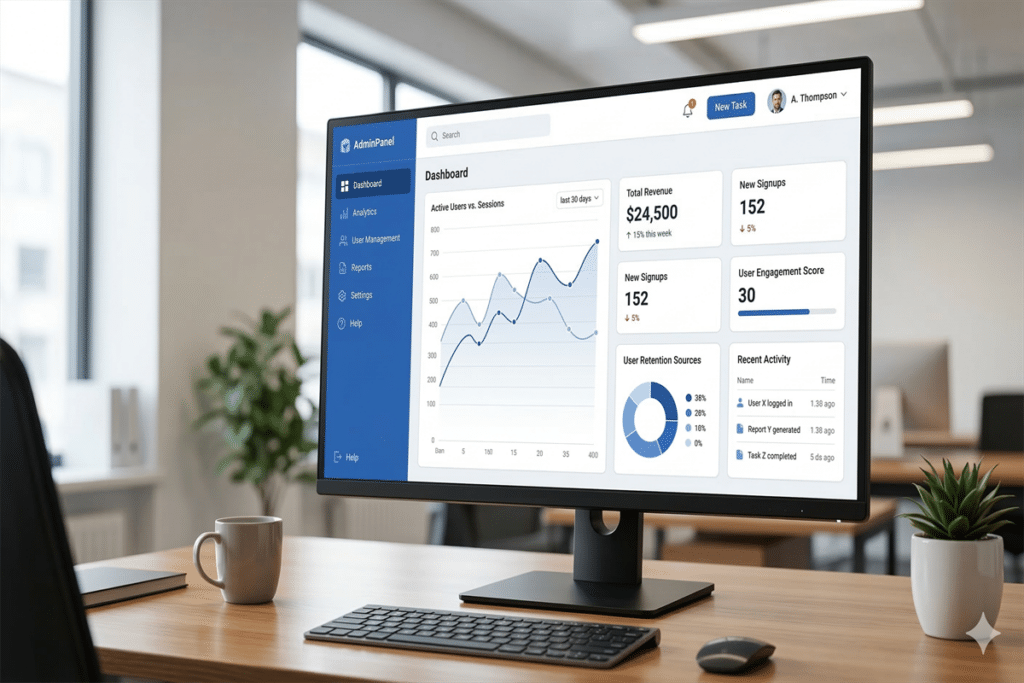
Analytics Dashboard
View real-time analytics and performance metrics at a glance.
User Profile
Manage user settings, preferences, and account details.
Settings Panel
Configure application settings and integrations.
1
Step One
Start here to begin the setup process.
2
Step Two
Configure your preferences here.
3
Step Three
Review and confirm your settings.
02
Variation 02
Click, Text Markers
Numbered text markers with click trigger.
pp_ih_trigger=click
pp_ih_marker_type=text
pp_ih_marker_bg_color=8b5cf6
03
Variation 03
Large Markers
Large 48px markers with custom colors.
pp_ih_marker_size=48
pp_ih_marker_bg_color=dc2626
pp_ih_pulse_enable=yes
Analytics Dashboard
View real-time analytics and performance metrics at a glance.
User Profile
Manage user settings, preferences, and account details.
Settings Panel
Configure application settings and integrations.
Analytics Dashboard
View real-time analytics and performance metrics at a glance.
User Profile
Manage user settings, preferences, and account details.
Settings Panel
Configure application settings and integrations.
04
Variation 04
No Pulse, Small
Small 28px markers without pulse.
pp_ih_pulse_enable=no
pp_ih_marker_size=28
pp_ih_marker_bg_color=16a34a
05
Variation 05
Square Markers
Square markers with 4px border radius.
pp_ih_marker_border_radius=4
pp_ih_marker_bg_color=f59e0b
pp_ih_pulse_enable=yes
Analytics Dashboard
View real-time analytics and performance metrics at a glance.
User Profile
Manage user settings, preferences, and account details.
Settings Panel
Configure application settings and integrations.